
🌐 Image Translation
PixWit's AI translation turns the foreign-language text in a screenshot into the language you choose: 10 target languages are available, with three styles — Literal / Free Translation / Localization; the result can be shown in the text panel or overlaid directly on the original image.
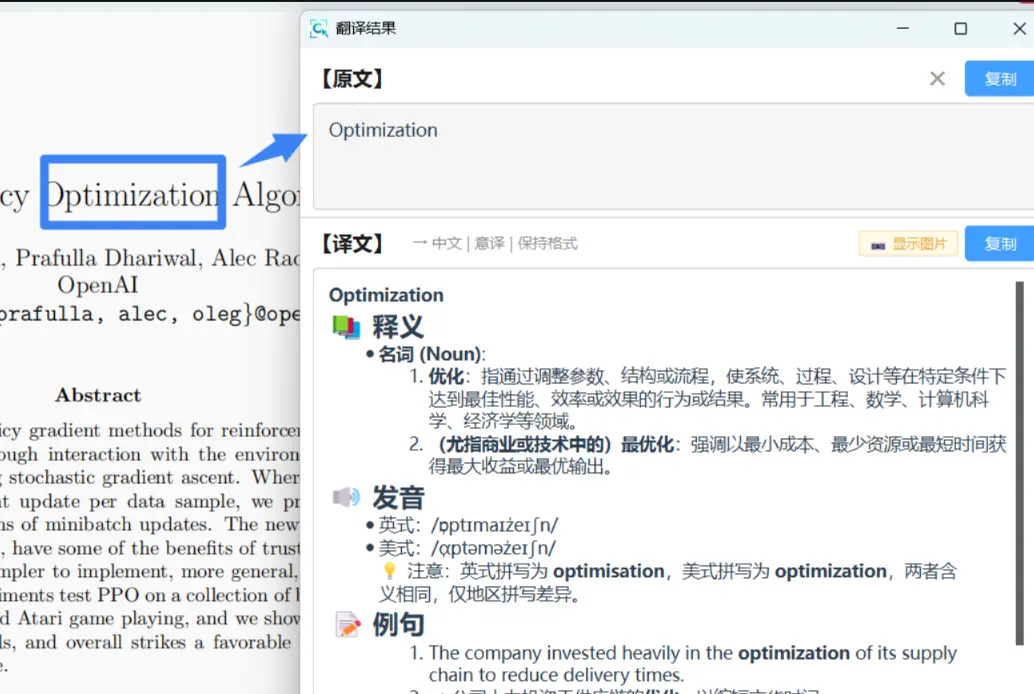
- Word explanation
Where to find it
| Entry point | Location | Description |
|---|---|---|
| Hotkey | Ctrl+T | The default global hotkey for "🌐 Translation"; change it in Settings → Hotkey Settings → 🤖 AI Feature Hotkeys, and click the × on its right to clear it, which disables the hotkey |
| Toolbar button | The "Translate (Ctrl+T)" item on the editor window toolbar | Hidden by default; add it to the toolbar in Settings → Annotation settings → Toolbar buttons. You can also put it in the AI Dropdown, expand it with ▼ and pick it there, then use "⚙ Set as Default Action" in the menu to make it the main button's default action |
What happens when it is triggered (the same for all 6 AI hotkeys):
- An editor window is already open: translation runs on the current image directly.
- No editor window: you first enter the screenshot region selection, and once the region is framed translation runs immediately — it does not jump to the editor window first.
- If an annotation tool is also selected for the region, the AI action does not run.
Translation settings
Settings → AI Service Config → Translation Settings:
| Setting | Options | Default |
|---|---|---|
| Target language | Chinese, English, Japanese, Korean, Russian, French, German, Spanish, Portuguese, Italian | Chinese |
| Translation style | Literal / Free Translation (recommended) / Localization | Free Translation |
| Translation mode | Text Translation (translation shown in the text panel) / Image Translation (translation overlaid directly on the original image) | Text Translation |
| Erase Source Text Background | In Image Translation mode, fills the source text area with the background color | Off |
| Translation Offset | In Image Translation mode, the number of pixels by which all translations are shifted down (0~200 px) | 0 |
📷 Image placeholder (Figure 1)
Translation settings — shows the five settings Target language / Translation style / Translation mode / Erase Source Text Background / Translation Offset and their default values To add the image: put the picture at docs/public/images/translation-settings.webp, then delete this tip block and uncomment the next line
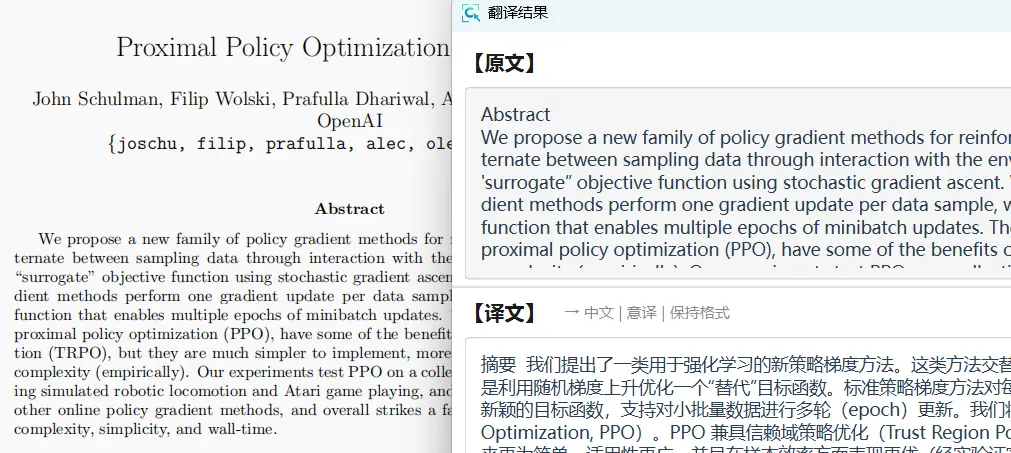
Translation result window
- Image on the left, text on the right: the left column holds the image; the right column has
[Original]at the top and[Translation]below, and both text boxes can be edited directly. - The icon buttons in the top-right corner are, in order: 🔁 Re-translate, Copy Original, Copy Translation, Show Image Area (appears when the image is hidden), Show Original Text Area.
- The translation title row carries the target language dropdown and the current style; changing the language inside the window re-translates immediately (changing the language from the settings page or the toolbar does not re-translate an already open window).
- While translating, the title shows progress such as
Translating... (N characters); when it finishes, it readsTranslation Result. - Right-click menu (image area): Hide/Show image, Hide/Show text panel,
T Show Translation Overlay, 💾 Save image, ↺ Reset layout; right-clicking in the original or translation box lets you copy the selected text or all of it. - The only hotkey is Esc to close the window; the window has no always-on-top option (Ctrl+T is the global hotkey of the Translation feature, not a way to pin this window on top).
📷 Image placeholder (Figure 2)
Translation result window — shows the two columns (image on the left, text on the right), the [Original] / [Translation] text boxes, the icon buttons in the top-right corner and the language dropdown in the translation title row To add the image: put the picture at docs/public/images/translation-result-window.webp, then delete this tip block and uncomment the next line
Image translation mode
When "Translation mode" is set to Image Translation:
- The translations are overlaid directly on the original image, and every translation box can be dragged, resized by its edges and zoomed with the mouse wheel.
- Click a translation to copy that one (toast:
✅ Translation copied). T Show Translation Overlayin the right-click menu toggles the overlay on and off.- When you save the image, the overlaid translations are rendered into the image, with a file name like
Translation_Screenshot<timestamp>.<format>.
📷 Image placeholder (Figure 3)
Image translation overlay — shows translations overlaid directly on the original image, draggable/zoomable translation boxes and the "✅ Translation copied" toast after clicking one To add the image: put the picture at docs/public/images/translation-picture-overlay.webp, then delete this tip block and uncomment the next line
AI service
Service sources
PixWit AI is on by default and works out of the box — no configuration is needed to translate; tick Custom AI Service only when you want to use your own API Key. The three checkboxes can be combined, and the priority is fixed at Local > Custom > Pixwit:
| Option | Description | Default |
|---|---|---|
| Custom AI Service (use your own API Key) | Configure your own large language models and a specific service | Off |
| Pixwit AI (recommended, ready to use) | Cloud AI service with the full feature set, no configuration needed | On |
| Local OCR only (offline recognition, no internet needed) | When ticked, text recognition in the whole app uses local OCR only (highest priority); during translation it is used only as the recognition step | On |
Large language models (shown when "Custom AI Service" is ticked)
Each service is an expandable card:
| Item | Description |
|---|---|
| Enable checkbox | When ticked, the service takes part in translation and analysis through the "Custom AI Service" channel |
| Name / API Key / Base URL / Model | Model is an editable dropdown with built-in names of common models such as DeepSeek, Qwen, GPT-4o, Claude and Gemini |
| Image Processing Capability | 🖼️ Multimodal model (supports image recognition) (default) or 📝 Text-only model (does not support images); a text-only model runs OCR first and then hands the result to the model, while a multimodal model can look at the image directly |
| Test Connection / Delete | Test Connection returns a success message or the specific reason it failed; Delete asks for no confirmation |
"+ Add Service" adds another service entry. Custom translation requires the service to be enabled, with both API Key and Base URL filled in.
When no service is available, a message appears: "Translation Service Unavailable / No usable translation service configured."
Note: some legacy messages in the app still point users to the "system tray menu" to find the AI service configuration (the "Translation Service Unavailable" dialog, for example); the actual entry point is Settings → AI Service Config.
FAQ
Q: Can I not translate unless I set up DeepSeek, Qwen or a similar service?
- No. PixWit AI is on by default and works out of the box — just press Ctrl+T to translate; a custom large language model is only an optional path, suited to those who want to use their own Key or a specific model.
Q: Can it only translate foreign text into Chinese?
- No. There are 10 target languages to choose from (Chinese, English, Japanese, Korean, Russian, French, German, Spanish, Portuguese, Italian), with Chinese as the default.
Q: Translation or recognition reports an error?
- Go to Settings → AI Service Config and test the connection, and check the API Key, your balance and the network; if you use a custom service, make sure it is enabled and that both API Key and Base URL are filled in.
Q: Can I pin the translation window on top with Ctrl+T?
- No. The translation result window has no always-on-top option, and the only hotkey available inside it is Esc (close the window);
Ctrl+Tis the global hotkey of the Translation feature, used to trigger translation.
Related features
- OCR Text Recognition
- AI Analysis (Chinese)
- AI Chat (Chinese)